
Content
Write about your products
Kitful reads your Shopify or WooCommerce store, so articles can show and link your own products.
Kitful reads the products in your Shopify or WooCommerce store. Articles can then feature them with their own photos and a link to each product page, and campaigns can write about them on a schedule.
This needs no publishing connection. To publish articles to your store's blog as well, connect Shopify, or WordPress for a WooCommerce store.
Connect your store
There is nothing to install. Kitful finds your store from the website saved in Settings > General and reads the products your store already shows to shoppers.
- Open Products in the sidebar.
- Click Find my store.
- Wait while Kitful checks your site. It usually takes under a minute.
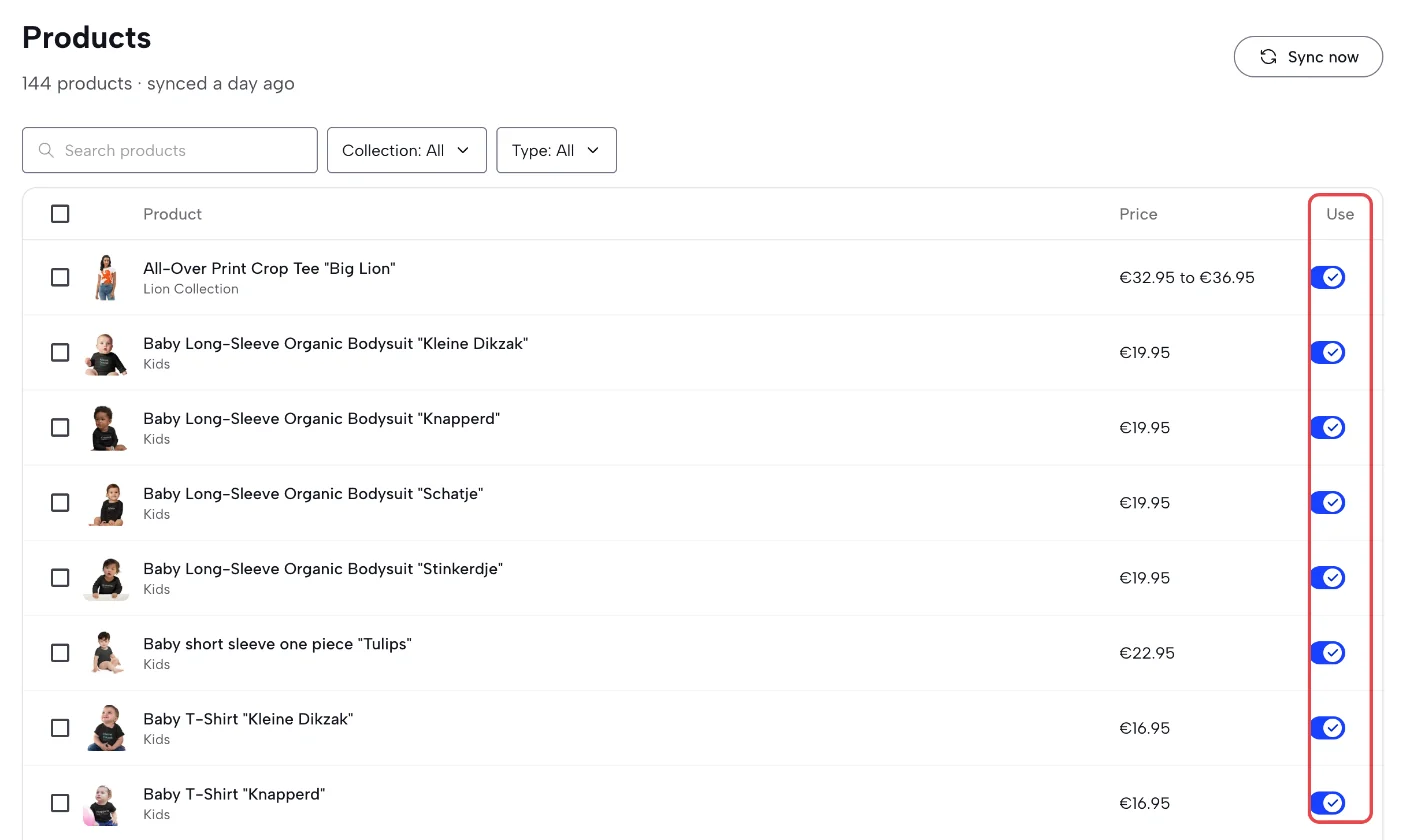
Your products then appear in a list, and Kitful reads the store again every day. Click Sync now to read it again right away.
Kitful reads up to 5,000 products and 500 collections. A Shopify store is read through its .myshopify.com address, so this works with a custom domain too.
Choose what articles use
Every product starts switched on. Turn a product's Use switch off to keep it out of every article. To change many at once, select them and click Turn on or Turn off.
Click a product to open its panel:
- Use photos in articles puts the store's first photo of the product under its section.
- Store notes tell the writer what the product page doesn't say, such as who it suits, how it fits, or common questions. Notes stay in Kitful.
- Articles lists every article that features the product.
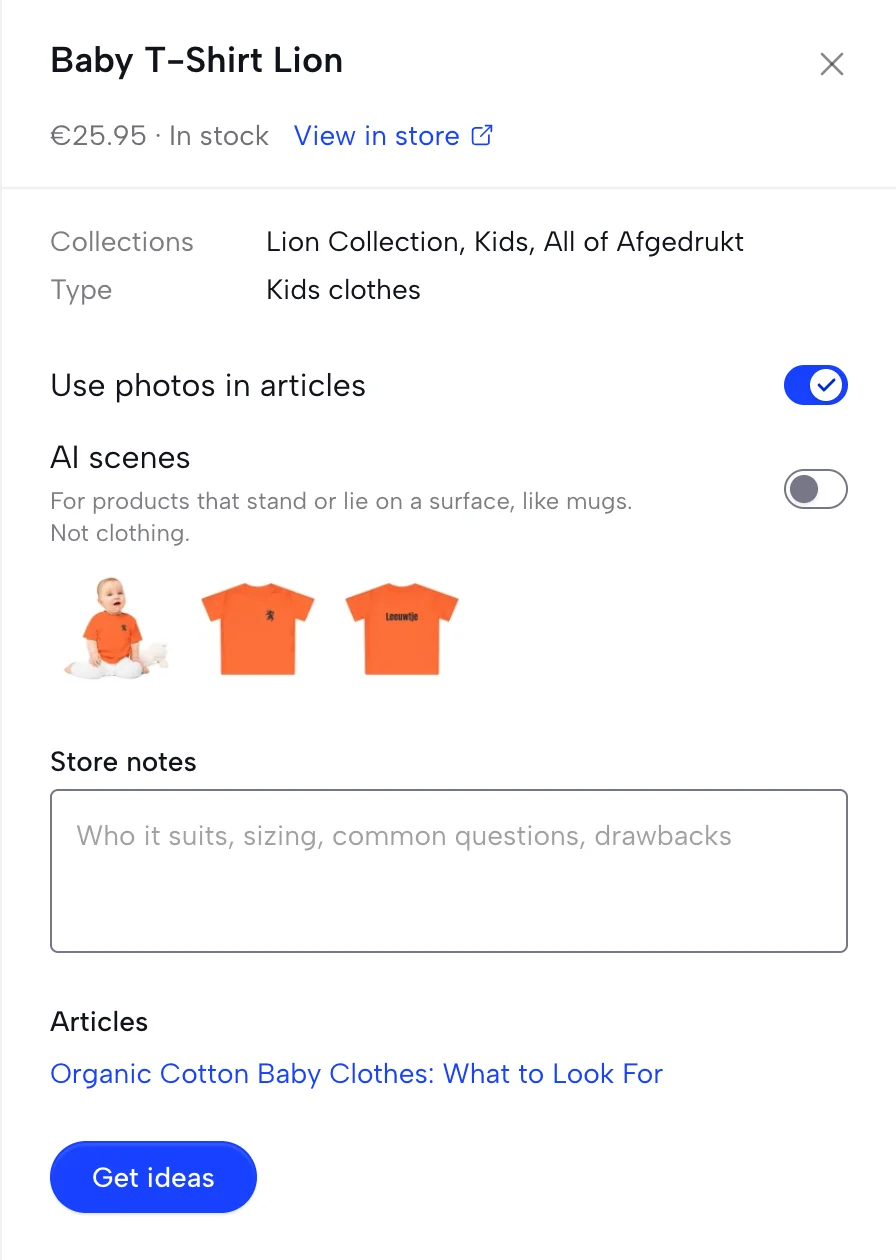
Prices show on the Products page so you can recognize each product. Articles never state a price, a discount, or a stock level, because those change after the article is published.
Write about your products
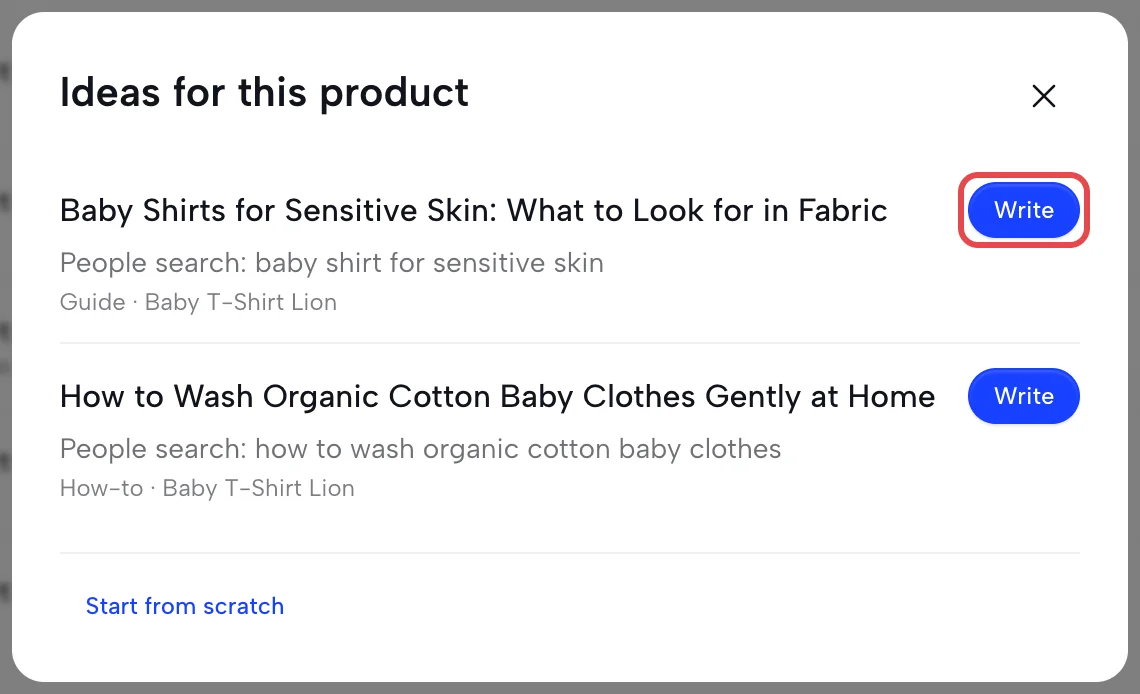
- From the Products page: select up to 8 products, or open one, and click Get ideas. Kitful suggests up to 3 articles, each with the search it targets and its format. Click Write to open Create with everything filled in. Ideas are free.
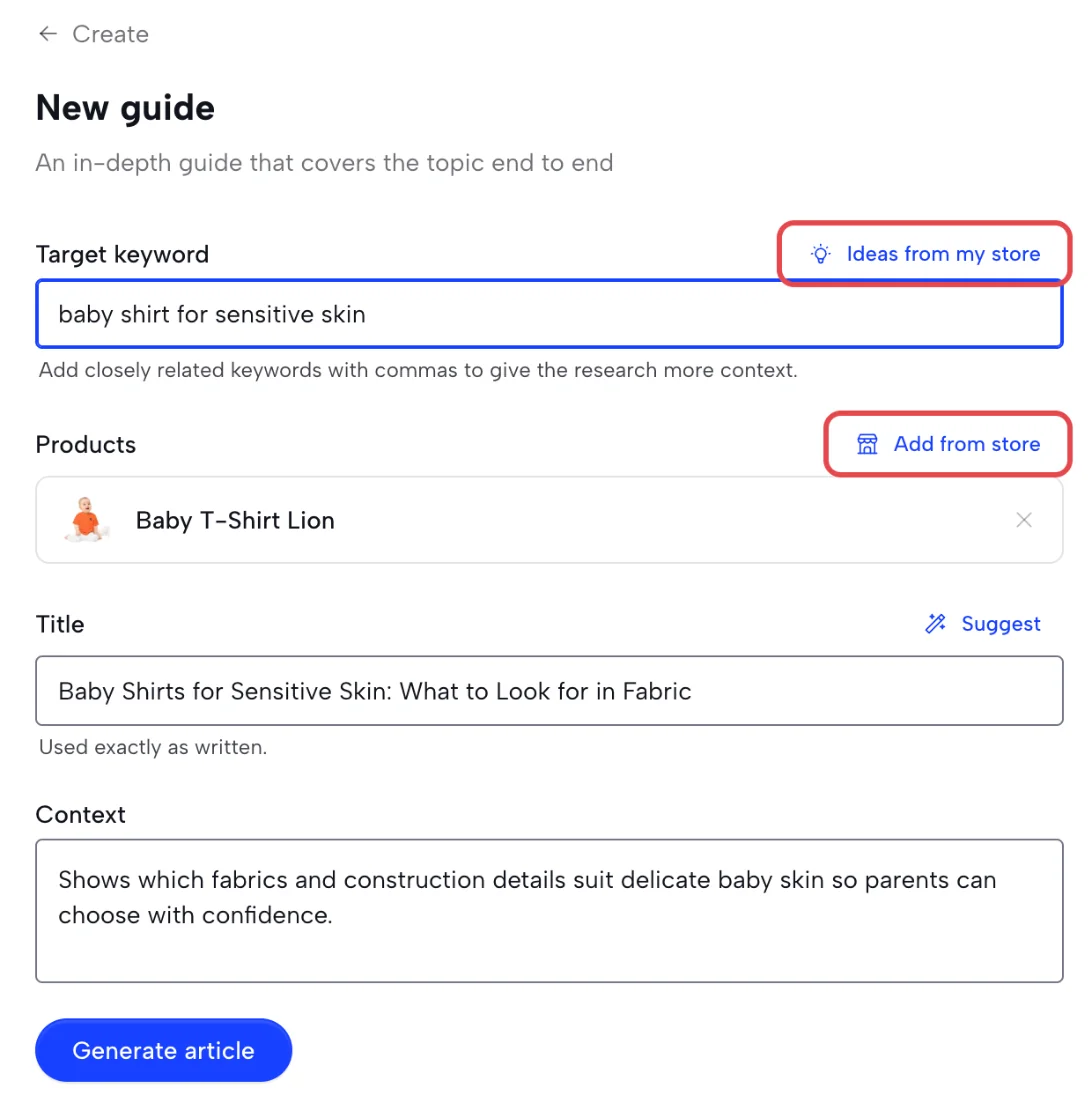
- From Create: click Add from store above List items on a list, or above Products on other formats, to pick products. Click Ideas from my store next to the keyword for suggestions. A comparison page takes two products from your store.
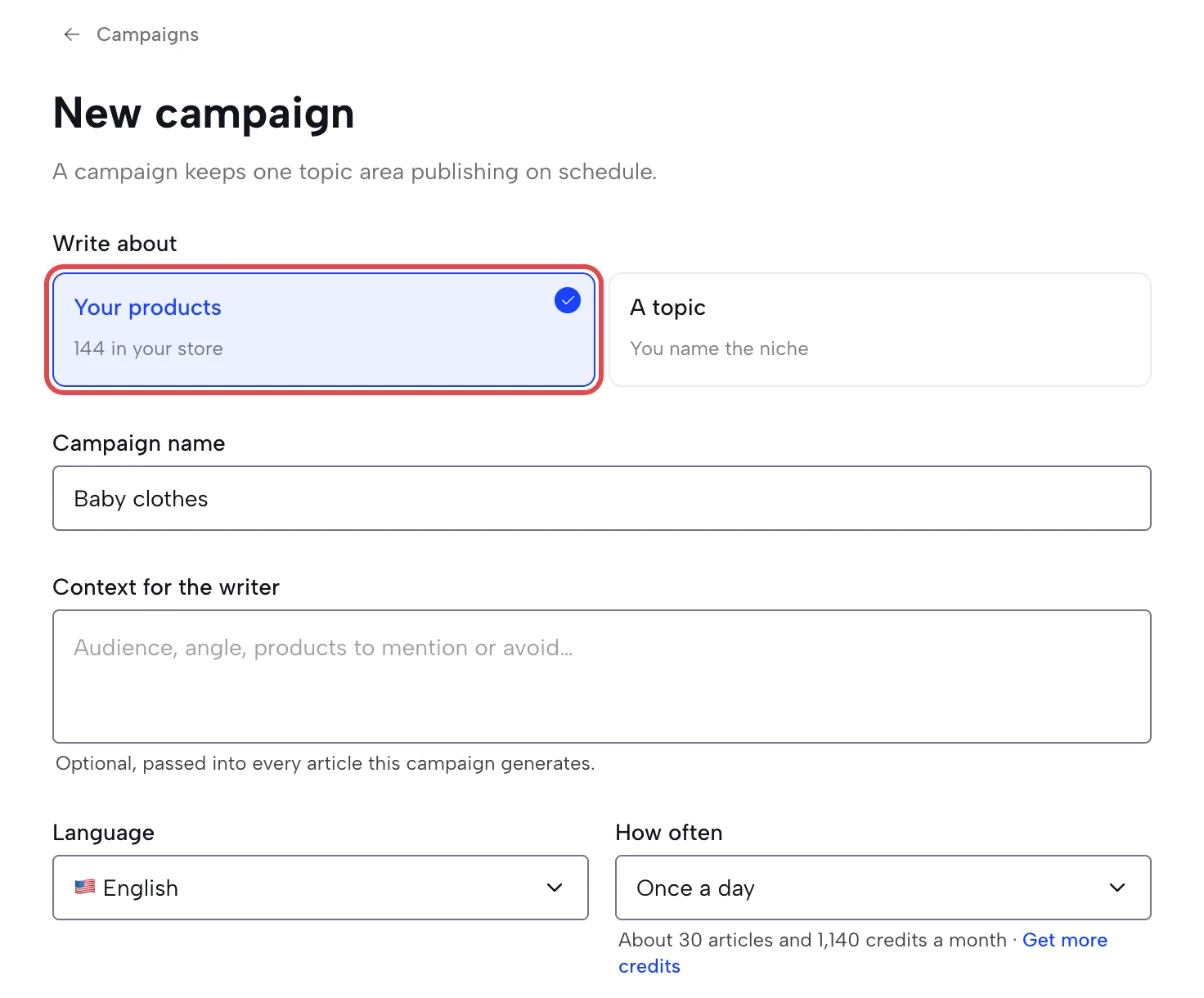
- With a campaign: in New campaign, set Write about to Your products. Kitful picks the topics from your products, collection by collection, and Approve each article first is on by default.
Each product links to its own page. A list of the products featured in the article can close it; turn Product list off in Settings > Basics if you don't want it.
AI scenes
An AI scene puts the product in a new setting, such as a mug on a kitchen table. Kitful pastes the store's own photo of the product into the scene, so the product itself is never redrawn. Each scene is checked before it is placed.
Switch AI scenes on in a product's panel. Scenes suit products that stand or lie on a surface; clothing never gets one. Scenes need a paid plan and cost 2 credits each, like any AI image. Kitful only makes them for articles you review first: articles you create yourself, and campaigns with Approve each article first on.
Remove or swap a product
When a product sells out or leaves your store, open the article, then open its settings and find Products.
- Remove takes the product's links, photo, and list item out of the article. It is free.
- Swap rewrites the parts about the product for another product you pick. It costs 5 credits.
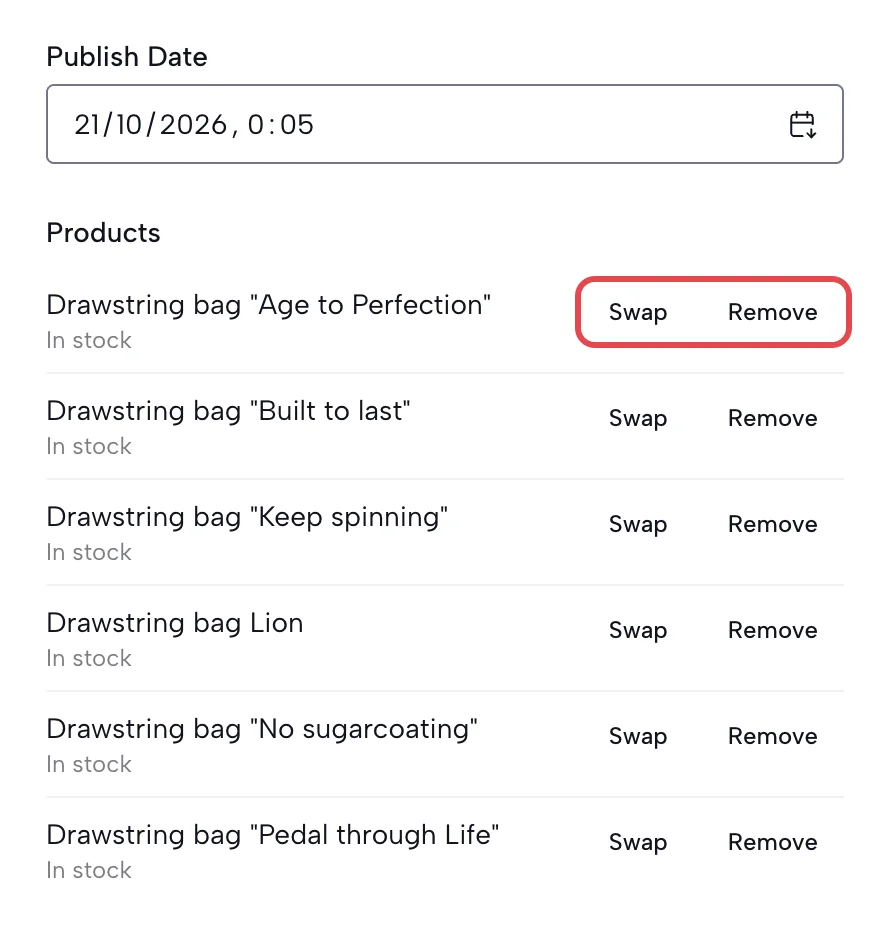
A comparison is about both of its products, so swap one instead of removing it. A list keeps at least two products.
If the article is published to WordPress, Shopify, Framer, or a webhook, Kitful updates the post on your site. This replaces edits made on your site since publishing. Elsewhere, copy the updated article to your site.
When Search Console is connected, the same section shows the clicks the product pages had before and after the article.
Troubleshoot your store
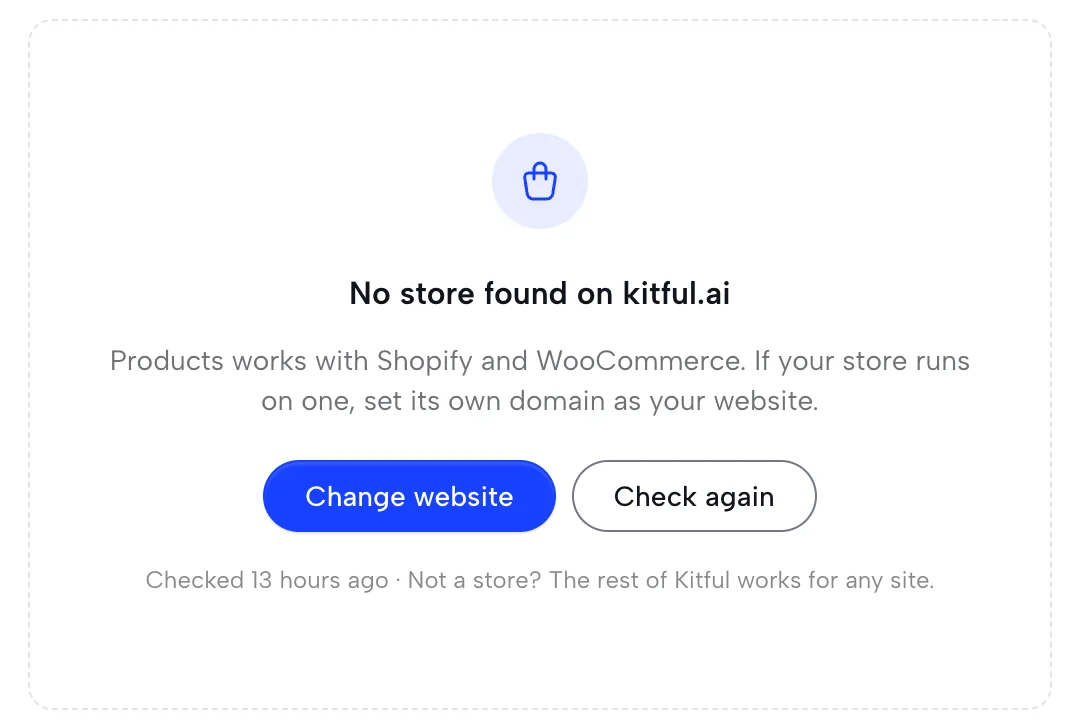
No store found
Kitful checked your website and found no Shopify or WooCommerce store. If your store has its own domain, click Change website and set that domain, then click Check again. Kitful checks again every week. Everything else in Kitful works without a store.
Your store is password-protected
Kitful can only read what shoppers can see. Remove the storefront password in your store's settings, then click Check again.
A product is missing
Kitful reads only products that are published to your online store. Publish the product in your store, then click Sync now.